ज़ूम इंटरव्यू में कैसे सफल हों: सेटअप, लाइटिंग और शिष्टाचार
तकनीकी सेटअप, लाइटिंग, बैकग्राउंड और पेशेवर शिष्टाचार पर विशेषज्ञ युक्तियों के साथ वर्चुअल इंटरव्यू की कला में महारत हासिल करें।
8 months ago
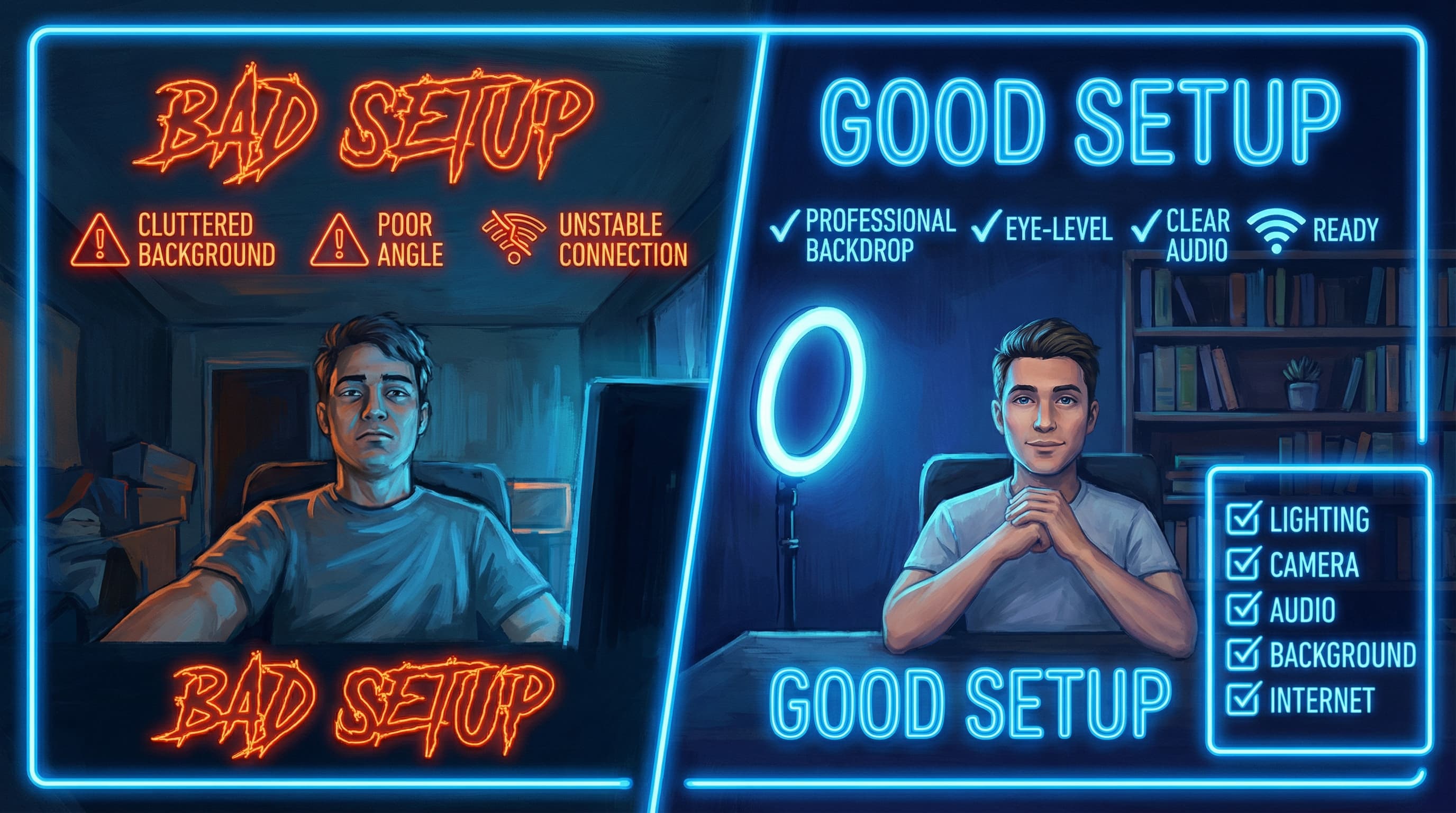
आज 86% कंपनियाँ अपनी भर्ती प्रक्रिया के हिस्से के रूप में वीडियो इंटरव्यू का उपयोग करती हैं, फिर भी अधिकांश उम्मीदवार ज़ूम कॉल को सामान्य वीडियो चैट की तरह ही लेते हैं। परिणाम? योग्य पेशेवर अपनी सपनों की नौकरी खो देते हैं क्योंकि वे तकनीकी खराबियों, खराब लाइटिंग (जिससे वे थके हुए दिखते हैं) या बॉडी लैंग्वेज (जो स्क्रीन के माध्यम से सही ढंग से नहीं पहुँच पाती) पर ध्यान नहीं देते।
सच तो यह है कि ज़ूम इंटरव्यू एक प्रदर्शन है—एक ऐसा प्रदर्शन जहाँ आपका तकनीकी सेटअप, उपस्थिति, लाइटिंग और व्यवहार आपके एक शब्द बोलने से पहले ही आपकी व्यावसायिकता और तैयारी के बारे में बता देते हैं। यह व्यापक मार्गदर्शिका उन महत्वपूर्ण तत्वों का विवरण देती है जिनमें आपको अपने अगले वर्चुअल इंटरव्यू में अलग दिखने के लिए महारत हासिल करने की आवश्यकता है।
त्वरित जीत: 5 चीजें जिन्हें आप 5 मिनट में ठीक कर सकते हैं
गहराई से जानने से पहले, यहाँ कुछ त्वरित सुधार दिए गए हैं जो तत्काल प्रभाव डालते हैं:
- अपने लैपटॉप को किताबों के ढेर पर रखें ताकि कैमरा आँखों के स्तर (eye level) पर हो।
- खिड़की की ओर मुँह करके बैठें बजाय इसके कि वह आपके पीछे हो।
- सभी ब्राउज़र टैब बंद करें और नोटिफिकेशन म्यूट करें।
- अपना फ़ोन दूसरे कमरे में रखें।
- अपना पूरा इंटरव्यू पहनावा पहनें, जिसमें पैंट या स्कर्ट भी शामिल है।
आइए अब प्रत्येक तत्व के बारे में विस्तार से जानें।
भाग 1: तकनीकी सेटअप—सफल वीडियो इंटरव्यू की नींव
उपस्थिति या शिष्टाचार पर चर्चा करने से पहले, आपकी तकनीक पूरी तरह से काम करनी चाहिए। तकनीकी खराबियाँ अनावश्यक तनाव पैदा करती हैं और आपकी योग्यताओं से ध्यान भटकाती हैं। यहाँ बताया गया है कि उन्हें कैसे खत्म किया जाए।
ज़ूम इंटरव्यू के लिए आपको किस डिवाइस का उपयोग करना चाहिए?
आपके डिवाइस का चुनाव इस पर महत्वपूर्ण प्रभाव डालता है कि आप कैमरे पर कैसे दिखते हैं। डेस्कटॉप और लैपटॉप कंप्यूटर हमेशा मोबाइल डिवाइस से बेहतर प्रदर्शन करते हैं, इसलिए यदि संभव हो तो स्मार्टफोन से इंटरव्यू देने से बचें। लैपटॉप बेहतर कैमरा गुणवत्ता, अधिक विश्वसनीय ऑडियो और फोन की तुलना में अधिक स्थिर अनुभव प्रदान करते हैं।
इंटरव्यू से पहले, ये आवश्यक तैयारी कदम उठाएं:
- अपने निर्धारित इंटरव्यू से कम से कम 24 घंटे पहले ज़ूम इंस्टॉल और अपडेट करें। यह आपको बिना किसी आखिरी मिनट के तनाव के इंस्टॉलेशन की समस्याओं को हल करने का समय देता है। अपनी सिस्टम सेटिंग्स की जाँच करें और सुनिश्चित करें कि ज़ूम पूरी तरह से नवीनतम संस्करण में अपडेट है।
- अपने डिवाइस को पूरी तरह से चार्ज करें और इंटरव्यू के दौरान इसे पावर से कनेक्ट रखें। कम बैटरी वाला लैपटॉप महत्वपूर्ण क्षण में बंद हो सकता है, इसलिए इस जोखिम को पूरी तरह से समाप्त कर दें।
- अपने इंटरनेट कनेक्शन का गहन परीक्षण करें। यह पुष्टि करने के लिए स्पीड टेस्ट चलाएं कि आपके पास पर्याप्त बैंडविड्थ (न्यूनतम 2.5 एमबीपीएस डाउनलोड/अपलोड) है। वाई-फाई के बजाय ईथरनेट के माध्यम से एक स्थिर, वायर्ड कनेक्शन बेहतर है। यदि आपको वाई-फाई का उपयोग करना है, तो अपने राउटर के करीब बैठें।
मुझे ज़ूम इंटरव्यू के लिए अपना कैमरा कैसे रखना चाहिए?
कैमरा पोजिशनिंग सीधे प्रभावित करती है कि आप कितने आत्मविश्वासी और पेशेवर दिखते हैं। यदि आप इसे गलत करते हैं, तो बेहतरीन उत्तर भी काम नहीं आएंगे।
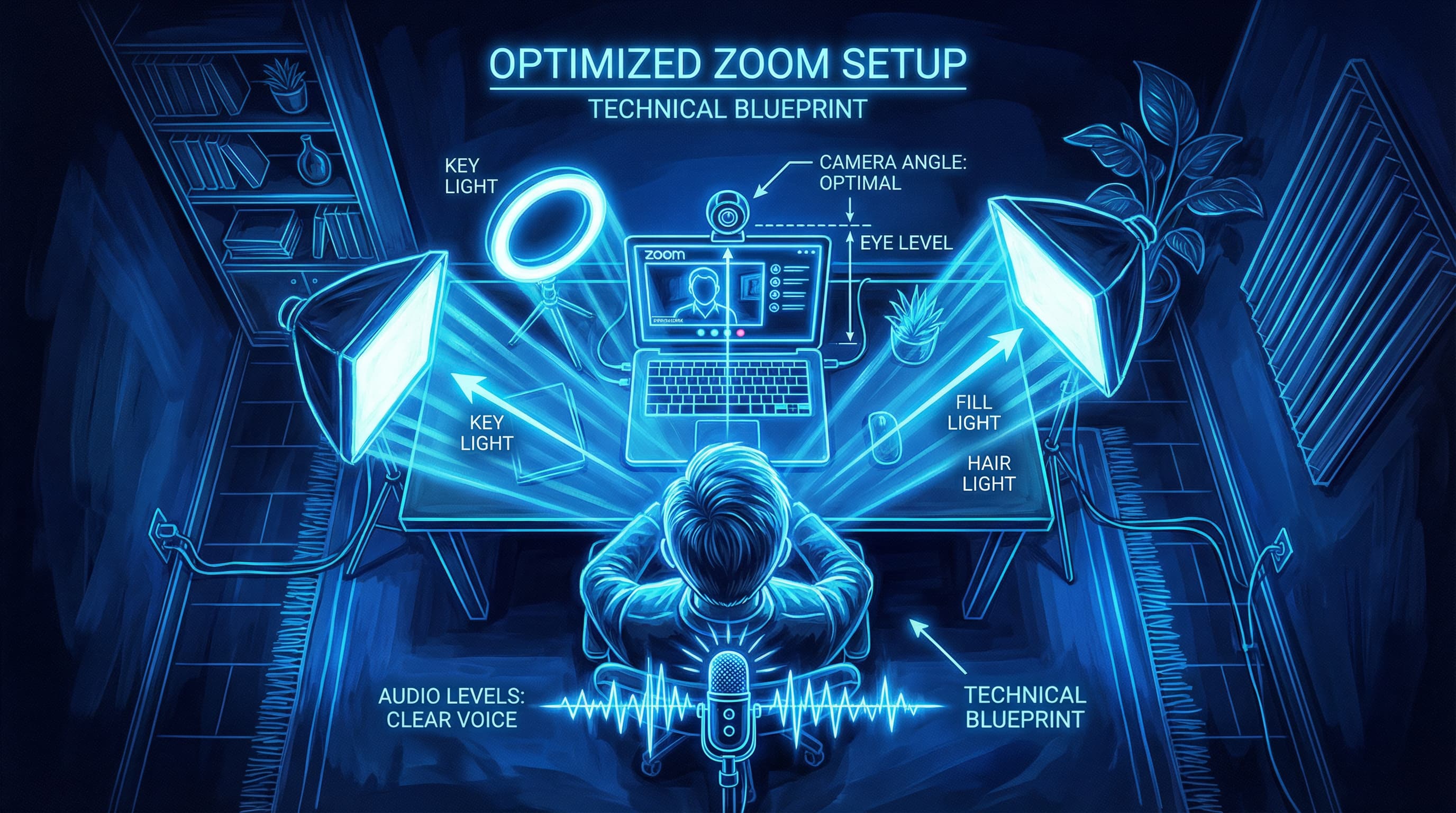
अपने कैमरे को आँखों के स्तर पर या उससे थोड़ा ऊपर रखें। यह अनिवार्य है। जब आपका कैमरा बहुत नीचे होता है, तो आप इंटरव्यूअर को नीचे देखते हुए दिखाई देते हैं, जो अहंकारी लग सकता है। बहुत ऊपर होने पर, आप दबे हुए लगते हैं, लगातार ऊपर देखते रहते हैं। आई-लेवल पोजिशनिंग स्वाभाविक, आमने-सामने की बातचीत की नकल करती है और मनोवैज्ञानिक जुड़ाव पैदा करती है।
व्यावहारिक रूप से:
- लैपटॉप के लिए: कैमरा लेंस को अपनी आँखों के साथ संरेखित करने के लिए अपने लैपटॉप के नीचे किताबें या एक एडजस्टेबल स्टैंड रखें।
- एक्सटर्नल वेबकैम के लिए: कैमरे को अपने मॉनिटर के शीर्ष पर या एक छोटे एडजस्टेबल स्टैंड पर रखें।
- दूरी: अपने कैमरे से लगभग दो फीट दूर बैठें, जिससे आपका सिर और कंधे फ्रेम के लगभग दो-तिहाई हिस्से में हों।
ज़ूम पर खुद को रिकॉर्ड करके इस सेटअप का परीक्षण करें। आपका चेहरा केंद्र में होना चाहिए और आपके सिर के ऊपर और किनारों पर समान स्थान होना चाहिए। उन "नाक के नीचे से" या "नीचे देखते हुए" कोणों से बचें जो तैयारी न करने वाले उम्मीदवारों के साथ अक्सर होता है।
वीडियो की तुलना में ऑडियो गुणवत्ता अधिक क्यों मायने रखती है
यहाँ एक रहस्य है जो अधिकांश उम्मीदवार नहीं जानते: ऑडियो गुणवत्ता अक्सर वीडियो गुणवत्ता से अधिक महत्वपूर्ण होती है। इंटरव्यूअर थोड़े धुंधले वीडियो को सहन कर सकते हैं, लेकिन अस्पष्ट या धीमी आवाज आपके इंटरव्यू को तुरंत खराब कर देगी।
अपने लैपटॉप के बिल्ट-इन माइक के बजाय एक्सटर्नल माइक्रोफ़ोन का उपयोग करें। लैपटॉप माइक्रोफ़ोन अतिरिक्त बैकग्राउंड शोर पकड़ते हैं और धीमी या विकृत आवाज पैदा करते हैं। ब्लू यति (Blue Yeti) या स्नोबॉल (Snowball) जैसे किफायती USB माइक्रोफ़ोन ₹8,000 से कम में नाटकीय रूप से बेहतर स्पष्टता प्रदान करते हैं।
अपना माइक्रोफ़ोन सेट करते समय:
- दूरी: इसे अपने मुँह से 6-8 इंच की दूरी पर रखें।
- पिकअप पैटर्न: माइक्रोफ़ोन में सीधे बोलें और इसे अपने हाथों से न ढकें।
- परीक्षण: ध्वनि स्तर और स्पष्टता की जाँच करने के लिए अपने इंटरव्यू से कम से कम 30 मिनट पहले एक परीक्षण रिकॉर्डिंग चलाएं।
यदि आपके पास एक्सटर्नल माइक्रोफ़ोन नहीं है, तो बिल्ट-इन माइक्रोफ़ोन वाले वायर्ड ईयरबड्स का उपयोग करें—वे आपके लैपटॉप के माइक से काफी बेहतर प्रदर्शन करेंगे।
ज़ूम के भीतर अपनी ऑडियो सेटिंग्स अनुकूलित करें:
- सेटिंग्स > ऑडियो खोलें।
- "माइक्रोफ़ोन" के तहत, सत्यापित करें कि आपका एक्सटर्नल माइक इनपुट डिवाइस के रूप में चुना गया है।
- इनपुट वॉल्यूम को एडजस्ट करें ताकि यह 75-80% पर रहे ताकि ध्वनि विकृत न हो।
- यदि आप उच्च-गुणवत्ता वाले ऑडियो उपकरण का उपयोग कर रहे हैं, तो "इको कैंसिलेशन" अक्षम करें; ये फ़िल्टर पेशेवर माइक में बाधा डाल सकते हैं।
ज़ूम इंटरव्यू के लिए इंटरनेट कनेक्शन की आवश्यकताएं
अपने इंटरव्यू से कम से कम 24 घंटे पहले अपनी इंटरनेट स्पीड का परीक्षण करें। ज़ूम वीडियो कॉल के लिए आवश्यक है:
- न्यूनतम: 2.5 एमबीपीएस डाउनलोड, 1.5 एमबीपीएस अपलोड।
- अनुशंसित: विश्वसनीय, बफर-मुक्त वीडियो के लिए 5+ एमबीपीएस।
कनेक्टिविटी की समस्याओं की पहचान करने के लिए किसी मित्र या परिवार के सदस्य के साथ एक परीक्षण ज़ूम कॉल करें। यदि आपका वाई-फाई अस्थिर है, तो अधिक विश्वसनीय कनेक्शन के लिए ईथरनेट केबल का उपयोग करने पर विचार करें। रुकता हुआ वीडियो या कटती हुई आवाज अव्यवसायिकता का संकेत देती है—भले ही यह आपकी गलती न हो, इंटरव्यूअर अवचेतन रूप से इसे आपके खिलाफ मान सकते हैं।
कॉन्फ़िगर करने के लिए आवश्यक ज़ूम सेटिंग्स
- ज़ूम अपडेट करें: ऐप का नवीनतम संस्करण इंस्टॉल करें। पुराने संस्करणों में बग और सुरक्षा खामियां होती हैं।
- एक परीक्षण मीटिंग बनाएं: ऑडियो, वीडियो और सभी सेटिंग्स को सत्यापित करने के लिए अपने इंटरव्यू से 30 मिनट पहले एक अभ्यास ज़ूम मीटिंग में शामिल हों।
- फुल-स्क्रीन मोड: वास्तविक इंटरव्यू के दौरान ज़ूम को फुल-स्क्रीन पर सेट करें ताकि आपका इंटरव्यूअर ही वह एकमात्र चीज़ हो जिसे आप देख सकें। यह अन्य विंडो की ओर देखने के प्रलोभन को रोकता है।
- नोटिफिकेशन: अपने कंप्यूटर पर सभी नोटिफिकेशन अक्षम करें। ईमेल, स्लैक, सोशल मीडिया और किसी भी ऐसे एप्लिकेशन को बंद करें जो आपको विचलित कर सकता है या आवाज कर सकता है।
भाग 2: लाइटिंग—विजुअल लाभ जो आपको अलग बनाता है
वीडियो इंटरव्यू में लाइटिंग सबसे कम आंका जाने वाला तत्व है। खराब लाइटिंग आपको थका हुआ, अव्यवसायिक या उदासीन दिखाती है, भले ही आप वैसे न हों। पेशेवर लाइटिंग आपकी उपस्थिति को बदल देती है और ध्यान आकर्षित करती है। अच्छी खबर? इसे सही करने के लिए आपको महंगे उपकरणों की आवश्यकता नहीं है।
लाइटिंग के बुनियादी सिद्धांत जो हर उम्मीदवार को जानने चाहिए
लाइटिंग की मूल बातें समझने से आपको अपने सेटअप के बारे में सूचित निर्णय लेने में मदद मिलती है:
- प्रकाश की तीव्रता: चेहरे को बिना कठोर परछाई के स्पष्ट रूप से दिखाने के लिए 600 से 800 लुमेन (lumens) की रेंज में मुख्य प्रकाश का लक्ष्य रखें।
- कलर टेम्परेचर: 4000K से 5500K की रेंज में न्यूट्रल सफेद रोशनी का लक्ष्य रखें। बहुत गर्म रोशनी (3000K से नीचे) आपको थका हुआ दिखाती है; बहुत ठंडी रोशनी (6000K से ऊपर) कठोर और क्लिनिकल दिखती है। दिन की रोशनी लगभग 5000K होती है—जो आदर्श संदर्भ बिंदु है।
- प्रकाश की दिशा: प्रकाश आपके चेहरे के सामने से आना चाहिए, न कि आपके पीछे से। बैकलाइटिंग एक "सिलहूट प्रभाव" पैदा करती है जो आपके चेहरे को काला कर देती है और आपको लगभग पहचानना मुश्किल बना देती है।
क्या मुझे प्राकृतिक या कृत्रिम प्रकाश का उपयोग करना चाहिए?
जब संभव हो तो प्राकृतिक प्रकाश को प्राथमिकता दें। खुद को एक बड़ी खिड़की के सामने रखें जहाँ से नरम, बिखरी हुई दिन की रोशनी आ रही हो। सीधी धूप से बचें, जो कठोर परछाई और असमान स्किन टोन पैदा करती है। यदि खिड़की उपलब्ध नहीं है या रोशनी बहुत सीधी है, तो रोशनी को फैलाने के लिए हल्के पर्दे लगा दें।
बादल वाले दिन वास्तव में वीडियो इंटरव्यू के लिए एकदम सही होते हैं—बादल एक विशाल डिफ्यूज़र की तरह काम करते हैं, जो रोशनी को नरम करते हैं और इसे आपके चेहरे पर समान रूप से वितरित करते हैं। यदि आपका इंटरव्यू धूप वाले दिन है, तो विचार करें कि आपके चुने हुए स्थान पर रोशनी किस समय सबसे अच्छी होगी।
जब प्राकृतिक प्रकाश पर्याप्त न हो, तो वीडियो के लिए डिज़ाइन किए गए LED पैनल या सॉफ्टबॉक्स लाइट में निवेश करें। आधुनिक LED लाइटें किफायती हैं (लगभग ₹2,500 से शुरू), छूने पर ठंडी रहती हैं और एडजस्टेबल कलर टेम्परेचर प्रदान करती हैं।
थ्री-पॉइंट लाइटिंग सेटअप (पेशेवर दृष्टिकोण)
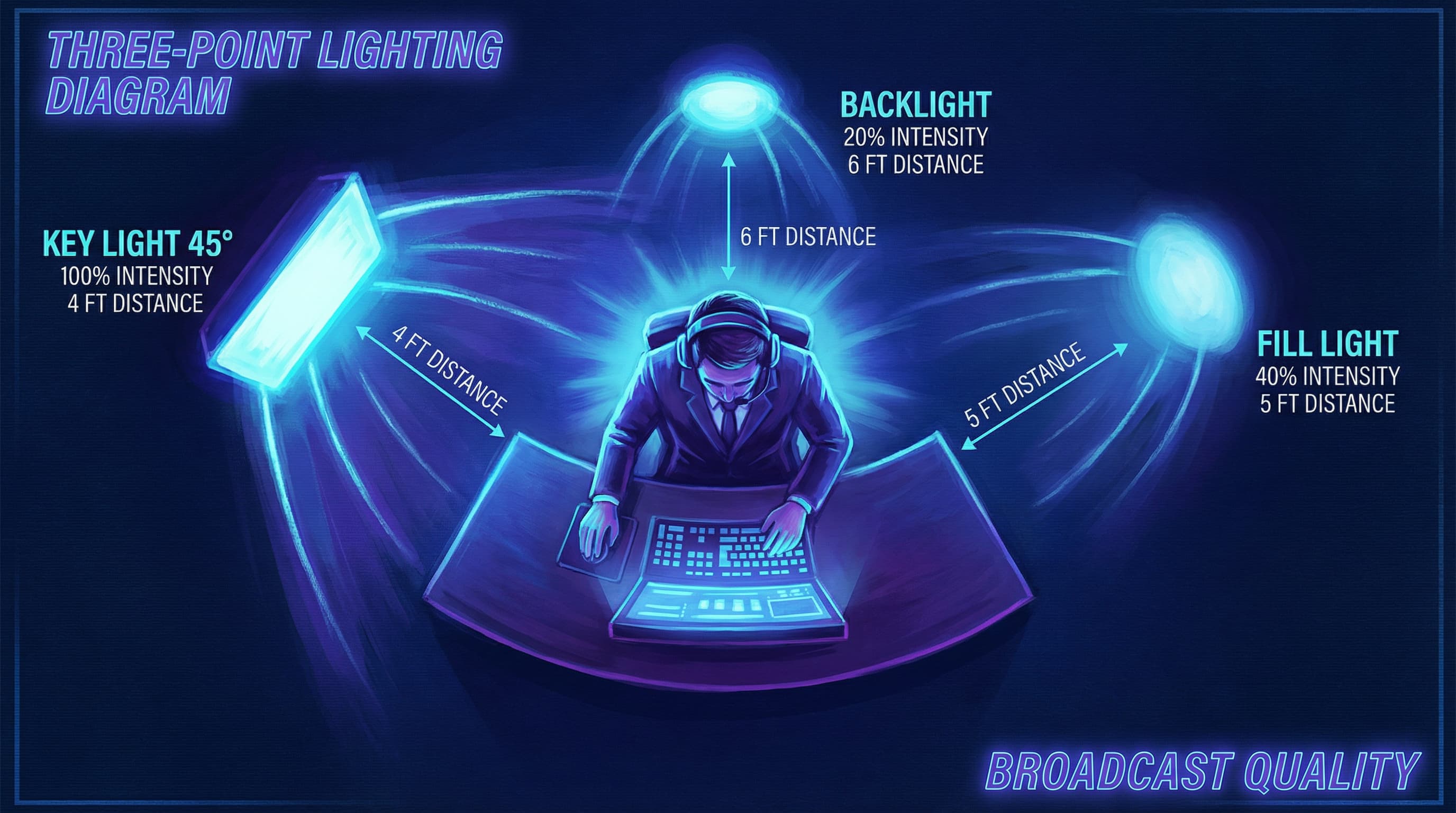
यदि आपके पास लाइटिंग उपकरण उपलब्ध हैं, तो पेशेवर मानक थ्री-पॉइंट लाइटिंग है। यह वही तकनीक है जो समाचार प्रसारकों और कंटेंट क्रिएटर्स द्वारा उपयोग की जाती है:
1. की लाइट (प्राथमिक प्रकाश स्रोत)
- इसे अपने चेहरे के एक तरफ 45-डिग्री के कोण पर, आँखों के स्तर से थोड़ा ऊपर रखें।
- उपलब्ध सबसे चमकीले और सबसे बड़े प्रकाश स्रोत (एक LED पैनल या सॉफ्टबॉक्स) का उपयोग करें।
- दूरी: नरम, समान कवरेज के लिए आपके चेहरे से 2-3 फीट दूर।
- उद्देश्य: आपके चेहरे को रोशन करता है और गहराई (dimension) बनाता है।
2. फिल लाइट (द्वितीयक प्रकाश स्रोत)
- इसे की लाइट की तुलना में 50% कम तीव्रता पर अपने चेहरे के दूसरी तरफ रखें।
- यह एक रिफ्लेक्टर (की लाइट से रोशनी को उछालने वाला) या एक द्वितीयक LED लाइट हो सकता है।
- उद्देश्य: आपकी ठुड्डी और आँखों के नीचे की कठोर परछाइयों को खत्म करता है, जिससे अत्यधिक नाटकीय लुक नहीं आता।
3. बैकलाइट (सेपरेशन लाइट)
- इसे अपने पीछे 30-45 डिग्री के कोण पर रखें, जिसकी चमक की लाइट की तुलना में लगभग आधी हो।
- एक सूक्ष्म "हेलो प्रभाव" बनाता है जो आपको बैकग्राउंड से अलग करता है।
- उद्देश्य: गहराई जोड़ता है और आपको बैकग्राउंड में घुलने से रोकता है।
बजट के अनुकूल लाइटिंग समाधान
पेशेवर लाइटिंग उपकरण नहीं हैं? कोई बात नहीं। यहाँ कुछ प्रभावी विकल्प दिए गए हैं:
- डेस्क लैंप हैक: अपने चेहरे के 45-डिग्री के कोण पर रखे एक नरम सफेद बल्ब वाले डेस्क लैंप का उपयोग करें।
- खिड़की की स्थिति: खुद को एक ऐसी खिड़की के सामने रखें जहाँ से प्राकृतिक रोशनी सीधे आपके चेहरे पर पड़ रही हो।
- DIY रिफ्लेक्टर: चेहरे के अंधेरे हिस्से पर रोशनी उछालने के लिए रिफ्लेक्टर के रूप में सफेद पोस्टर बोर्ड या फोम कोर का उपयोग करें।
- रिंग लाइट्स: किफायती रिंग लाइट्स (₹1,500 से कम) समान, आकर्षक रोशनी प्रदान करती हैं और विशेष रूप से वीडियो कॉल के लिए डिज़ाइन की गई हैं।
- केवल ओवरहेड लाइट से बचें: वे आपकी आँखों के नीचे भद्दी परछाई बनाती हैं जिससे आप थके हुए दिखते हैं।
लाइटिंग के लिए क्या करें और क्या न करें
| करें | न करें |
|---|---|
| परछाइयों को खत्म करने के लिए प्रकाश स्रोतों को अपने सामने रखें | केवल सीधे ओवरहेड लाइटिंग का उपयोग न करें (आँखों के नीचे कठोर परछाई बनाता है) |
| कठोर, सीधी रोशनी के बजाय बिखरी हुई, नरम रोशनी का उपयोग करें | अपने पीछे सीधे तेज रोशनी के साथ न बैठें (सिलहूट प्रभाव का कारण बनता है) |
| लाइटिंग का परीक्षण कैमरा मॉनिटर के माध्यम से करें, न कि केवल आँखों से | कैमरे पर परीक्षण किए बिना केवल कृत्रिम रोशनी पर भरोसा न करें |
| दिन के उजाले की निरंतरता के लिए लाइट कलर टेम्परेचर को 4000K–5500K पर सेट करें | गर्म (2700K) और ठंडी (5600K) रोशनी के स्रोतों को न मिलाएं (रंग असंतुलन पैदा करता है) |
| आँखों को सिकोड़ने से बचने के लिए लाइट को दूरी और कोण पर रखें | रोशनी को सीधे अपने चेहरे पर या अपनी आँखों के बहुत पास न डालें |
भाग 3: बैकग्राउंड और वातावरण
आपका बैकग्राउंड आपके शब्दों जितना ही प्रभावी होता है। एक अव्यवस्थित या अव्यवसायिक बैकग्राउंड आपकी योग्यताओं से ध्यान भटकाता है और लापरवाही का संकेत देता है। यहाँ बताया गया है कि एक ऐसा स्थान कैसे बनाया जाए जो आपकी विश्वसनीयता को मजबूत करे।
एक आदर्श इंटरव्यू बैकग्राउंड कैसा होना चाहिए?
- साफ और व्यवस्थित: एक सादी दीवार, साफ किताबों की अलमारी, या साधारण होम ऑफिस सेटअप चुनें।
- पेशेवर सौंदर्य: व्यस्त पैटर्न, व्यक्तिगत फोटो, या अपनी भूमिका से संबंधित नहीं होने वाली वस्तुओं से बचें।
- न्यूट्रल रंग: मटमैला सफेद, धूसर और नीला एक पेशेवर कैनवास प्रदान करते हैं जो विचलित नहीं करता है।
- गहराई और रुचि: एक साधारण किताबों की अलमारी या पौधा बिना किसी अव्यवस्था के सूक्ष्म विजुअल रुचि जोड़ सकता है।
- कोई हलचल नहीं: सुनिश्चित करें कि आपके इंटरव्यू के दौरान बैकग्राउंड में कुछ भी हिलेगा या विचलित नहीं करेगा।
वर्चुअल बैकग्राउंड बनाम फिजिकल बैकग्राउंड: कौन सा बेहतर है?
वर्चुअल बैकग्राउंड (ज़ूम का ब्लर या डिजिटल दृश्य) काम कर सकते हैं, लेकिन वे जोखिम भरे हैं। यहाँ बताया गया है क्यों:
- वे प्रोसेसिंग पावर की खपत करते हैं, जिससे संभावित रूप से वीडियो में रुकावट या देरी हो सकती है।
- खराब तरीके से निष्पादित वर्चुअल बैकग्राउंड अव्यवसायिक लगते हैं और आपके शरीर के चारों ओर पिक्सल काट सकते हैं।
- विस्तृत डिजिटल दृश्यों की तुलना में सरल ब्लर प्रभाव सुरक्षित होते हैं।
सर्वोत्तम अभ्यास: यदि आपके पास एक प्रस्तुत करने योग्य फिजिकल बैकग्राउंड है, तो उसका उपयोग करें। यदि नहीं, तो विचलित करने वाले डिजिटल बैकग्राउंड के बजाय ज़ूम के ब्लर फीचर का उपयोग करें। किसी भी वर्चुअल बैकग्राउंड का अभ्यास कॉल के दौरान परीक्षण करें ताकि यह सुनिश्चित हो सके कि यह आपके विशिष्ट कंप्यूटर पर ठीक से रेंडर हो रहा है।
व्यावहारिक बैकग्राउंड सेटअप टिप्स
- अपने डेस्क या कुर्सी को इस तरह रखें कि आपका बैकग्राउंड आपके पीछे की जगह को भर दे बिना तंग दिखे।
- उचित फ्रेमिंग बनाए रखने के लिए अपने सिर के चारों ओर पर्याप्त जगह सुनिश्चित करें।
- अभ्यास ज़ूम कॉल में शामिल होकर और यह देखकर कि वह कैमरे पर कैसा दिखता है, अपने बैकग्राउंड का परीक्षण करें।
- यदि संभव हो, तो दरवाजों, हलचल वाली खिड़कियों, या ऐसे गलियारों से दूर स्थान चुनें जहाँ परिवार के सदस्य चल सकते हों।
भाग 4: वीडियो इंटरव्यू के लिए क्या पहनें
आपके कपड़े उम्मीदें जगाते हैं और अवसर के प्रति सम्मान का संकेत देते हैं। इंटरव्यू के लिए "जरूरत से ज्यादा तैयार" (overdressing) जैसी कोई चीज़ नहीं होती, लेकिन "जरूरत से कम तैयार" (underdressing) जैसी चीज़ ज़रूर होती है।
सामान्य नियम: कंपनी के सामान्य पहनावे से एक कदम ऊपर रहें
कंपनी की वेबसाइट, लिंक्डइन और कर्मचारियों की तस्वीरों पर शोध करें। यदि उनकी टीम बिजनेस कैजुअल (business casual) पहनती है, तो आप बिजनेस प्रोफेशनल (business professional) पहनें। यदि वे अधिक औपचारिक (कानून, वित्त, परामर्श) हैं, तो पूर्ण बिजनेस फॉर्मल पहनावा पहनें।
बिजनेस फॉर्मल (पारंपरिक उद्योग)
पुरुषों के लिए: ड्रेस शर्ट, टाई और पॉलिश किए हुए ड्रेस शूज के साथ गहरे रंग का सूट जैकेट या ब्लेज़र। महिलाओं के लिए: सिलवाया हुआ सूट या ब्लेज़र के साथ पेशेवर ब्लाउज, ड्रेस पैंट या स्कर्ट, और बंद पैर वाले जूते।
वे उद्योग जो आमतौर पर औपचारिक पहनावे की उम्मीद करते हैं: कानून, वित्त, लेखा, सरकार और कार्यकारी स्तर के कॉर्पोरेट पद।
बिजनेस कैजुअल (सबसे आम)
पुरुषों के लिए: न्यूट्रल टोन (सफेद, हल्का नीला, धूसर) में कॉलर्ड शर्ट या बटन-डाउन, वैकल्पिक रूप से ब्लेज़र या स्वेटर के साथ। इसे ड्रेस पैंट या खाकी के साथ पहनें। महिलाओं के लिए: न्यूट्रल टोन में ब्लाउज, बटन-डाउन शर्ट या साफ स्वेटर, जिसे ड्रेस पैंट, स्कर्ट या पेशेवर ड्रेस के साथ पहना गया हो। परिष्कृत लुक के लिए ब्लेज़र जोड़ें।
बिजनेस कैजुअल प्लस (क्रिएटिव और टेक उद्योग)
आरामदायक वातावरण में साफ बटन-डाउन या स्ट्रक्चर्ड टॉप के साथ अच्छी फिटिंग वाली जींस स्वीकार्य है। हालांकि, ग्राफिक टीज़, हुडी या बहुत अधिक कैजुअल चीज़ों से बचें।
कैमरे पर कौन से रंग और पैटर्न सबसे अच्छे काम करते हैं?
| तत्व | मार्गदर्शन |
|---|---|
| कलर स्कीम | न्यूट्रल रंगों (नेवी, ग्रे, व्हाइट, बेज, ब्लैक) का प्रयोग करें। वे पेशेवर दिखते हैं और कैमरे पर विचलित नहीं करते हैं। ठोस नीले रंग वीडियो पर विशेष रूप से अच्छे लगते हैं। |
| पैटर्न | व्यस्त, विचलित करने वाले पैटर्न से बचें। सूक्ष्म बनावट और ठोस रंग बेहतर दिखते हैं। छोटी धारियां कैमरे पर विचलित करने वाला "मोइरे" (moiré) प्रभाव पैदा कर सकती हैं। |
| फिटिंग | ऐसे कपड़े पहनें जो फिट हों और आपको आत्मविश्वास महसूस कराएं, न कि संकोच या तंगी। |
| निचला हिस्सा | हमेशा पेशेवर पैंट या स्कर्ट पहनें, भले ही आपका केवल ऊपरी आधा हिस्सा ही दिखाई दे। यह आपकी सुरक्षा करता है यदि आपको खड़ा होना पड़े, और यह आपको एक पेशेवर मानसिकता में रखता है। |
| गहने और सहायक उपकरण | उन्हें न्यूनतम और पेशेवर रखें। ऐसी किसी भी चीज़ से बचें जो हिलने पर खनकती, बजती या विचलित करती हो। |
| ग्रूमिंग | अपने इंटरव्यू की सुबह खुद को संवारें। साफ-सुथरे बाल, हल्का मेकअप (यदि आप पहनती हैं), और साफ-सुथरी उपस्थिति मायने रखती है। |
| ग्राफिक टीज़ और मैसेजिंग | राजनीतिक, विभाजनकारी या अत्यधिक कैजुअल संदेश वाली किसी भी शर्ट से बचें। अपना ध्यान अपनी योग्यताओं पर केंद्रित रखें। |
भाग 5: ज़ूम शिष्टाचार में महारत हासिल करना
तकनीकी उत्कृष्टता और उपस्थिति का कोई मतलब नहीं है यदि आपका व्यवहार आपके इंटरव्यूअर को विचलित या अपमानित करता है। वर्चुअल इंटरव्यू के लिए सोच-समझकर संचार समायोजन की आवश्यकता होती है जो अधिकांश लोगों के लिए स्वाभाविक रूप से नहीं आता है।
इंटरव्यू शुरू होने से पहले
जल्दी पहुंचें: निर्धारित समय से 5-10 मिनट पहले ज़ूम मीटिंग में शामिल हों। यह आपको अपने ऑडियो और वीडियो सेटिंग्स को सत्यापित करने और अपनी घबराहट शांत करने की अनुमति देता है। हालांकि, 10 मिनट से अधिक जल्दी शामिल न हों—यह इंटरव्यूअर को असहज कर सकता है।
सब कुछ शांत करें: अपना फोन बंद करें, अपने कंप्यूटर पर सभी नोटिफिकेशन बंद करें और घर के किसी भी उपकरण को शांत करें। अपना फोन पूरी तरह से नज़र से दूर रख दें—शोध से पता चलता है कि केवल फोन देखने से ही संज्ञानात्मक प्रदर्शन कम हो जाता है और ध्यान बंट जाता है।
अपनी जगह तैयार करें: अनावश्यक ब्राउज़र टैब बंद करें, अपने ईमेल क्लाइंट को शांत करें, और सुनिश्चित करें कि कमरे में कोई और न हो जो आपको बाधित कर सके। यदि संभव हो तो दरवाजा बंद कर लें, और घर के सदस्यों या परिवार के सदस्यों को अपने इंटरव्यू के समय के बारे में सूचित कर दें।
सामग्री तैयार रखें: अपना रिज्यूमे, कवर लेटर और तैयारी के नोट्स पहुँच के भीतर लेकिन फ्रेम से बाहर रखें। त्वरित संदर्भ के लिए कंपनी की वेबसाइट और जॉब डिस्क्रिप्शन को दूसरे मॉनिटर पर खोलकर रखें या पास में प्रिंट करके रखें।
इंटरव्यू के दौरान: बॉडी लैंग्वेज और आई कांटेक्ट
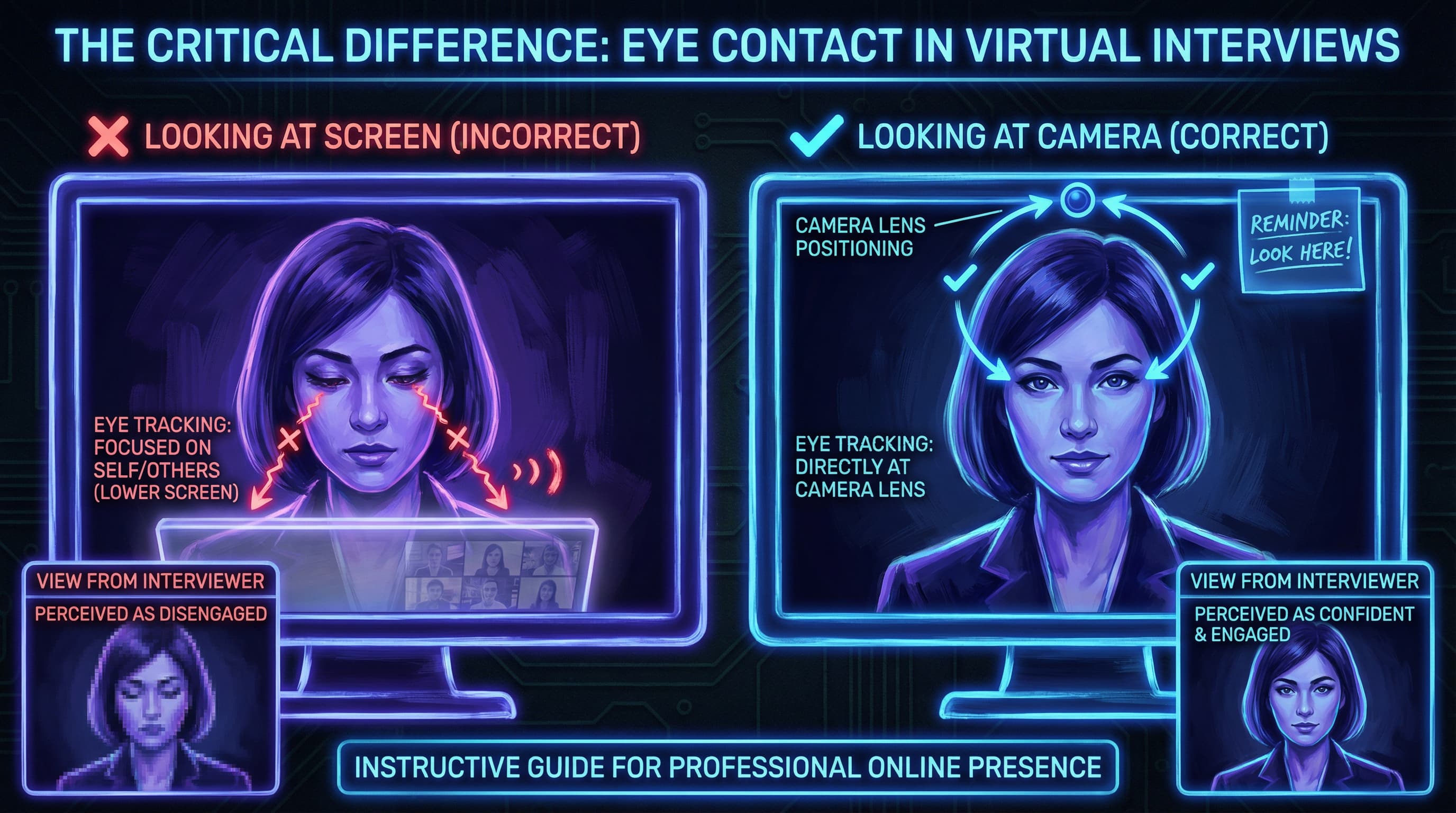
कैमरे के साथ आई कांटेक्ट बनाए रखें: यह सबसे महत्वपूर्ण व्यवहारिक तत्व है। अपनी स्क्रीन पर इंटरव्यूअर के चेहरे को देखने के बजाय, सीधे कैमरा लेंस में देखें। यह आई कांटेक्ट का भ्रम पैदा करता है और तालमेल बनाता है। यह पहली बार में अप्राकृतिक लगता है, लेकिन अभ्यास इसे स्वाभाविक बना देता है।
प्रो टिप: फोकस बिंदु के रूप में अपने कैमरा लेंस के पास एक छोटी फोटो या स्टिकी नोट रखें। जब आप इसे देखेंगे, तो आप स्वाभाविक रूप से इंटरव्यूअर के साथ "आई कांटेक्ट" करेंगे।
अपनी बॉडी लैंग्वेज को नियंत्रित करें:
- कंधों को पीछे रखकर सीधे बैठें। झुककर बैठना अरुचि और कम ऊर्जा का संकेत देता है।
- जुड़ाव और रुचि का संकेत देने के लिए महत्वपूर्ण क्षणों के दौरान थोड़ा आगे झुकें।
- अपने हाथ दिखाई देने दें और कैमरा फ्रेम के भीतर उद्देश्यपूर्ण इशारों का उपयोग करें। इशारे प्रभाव डालते हैं, लेकिन उन्हें थोड़ा कम करें—जो इशारे आमने-सामने की बातचीत में सामान्य होते हैं, वे कैमरे पर बढ़ा-चढ़ाकर दिखाए गए लग सकते हैं।
- बेचैनी दिखाने, हाथ बांधने या बार-बार अपना चेहरा छूने से बचें।
सिर हिलाएं और स्वीकार करें: यह दिखाने के लिए कि आप सुन रहे हैं और इंटरव्यूअर की बातों को समझ रहे हैं, समय-समय पर सिर हिलाएं। यह वीडियो कॉल में होने वाली हल्की ऑडियो देरी की भरपाई करता है और दिखाता है कि आप सक्रिय रूप से जुड़े हुए हैं।
अपने चेहरे के भावों को नियंत्रित करें:
- "ज़ूम न्यूट्रल फेस" से बचें—वह खाली नज़र जो आपको उदासीन या चिंतित दिखाती है।
- जब उचित और वास्तविक हो तो मुस्कुराएं।
- आमने-सामने की बातचीत की तुलना में अपने भावों को 10-15% अधिक व्यक्त करें; कैमरा सूक्ष्म संकेतों को दबा देता है।
- दर्पण के सामने अभ्यास करें या यह देखने के लिए खुद को रिकॉर्ड करें कि आपके भाव कैमरे पर कैसे दिखते हैं।
वीडियो इंटरव्यू में प्रभावी ढंग से कैसे बोलें
सोच-समझकर बोलें:
- अपने स्वर और गति को बदलें: मुख्य बिंदुओं पर ज़ोर देते समय अपने स्वर के उतार-चढ़ाव (inflection) को बदलें। महत्वपूर्ण बयान देते समय धीमे हो जाएं। थोड़ा ज़ोर से और मध्यम गति से बोलें—यह आपकी ऊर्जा को तेज और आकर्षक बनाए रखता है।
- जटिल प्रश्नों का उत्तर देने से पहले रुकें: मौन दिखाता है कि आप वास्तव में अपनी प्रतिक्रिया पर विचार कर रहे हैं, न कि केवल वह पहली चीज़ बोल रहे हैं जो मन में आती है। यह भटकने और बिखरे हुए उत्तरों को भी रोकता है।
- उत्तर संक्षिप्त रखें: प्रति उत्तर 30-60 सेकंड का लक्ष्य रखें जब तक कि प्रश्न के लिए गहरी व्याख्या की आवश्यकता न हो। वर्चुअल सेटिंग्स में लंबे उत्तर जुड़ाव को खत्म कर देते हैं जहाँ ध्यान देने की अवधि कम होती है। (अपने उत्तरों को व्यवस्थित करने में मदद के लिए, 30 सबसे आम जॉब इंटरव्यू प्रश्न पर हमारा गाइड देखें।)
- सारांश दें और पुष्टि करें: इंटरव्यूअर द्वारा किसी जटिल विषय की व्याख्या करने के बाद, संक्षेप में अपनी समझ को दोहराएं। यह सक्रिय सुनने की क्षमता दिखाता है और गलतफहमी को रोकता है।
ज़ूम सुविधाओं को रणनीतिक रूप से प्रबंधित करें:
- अपना म्यूट बटन जानें: जल्दी से म्यूट/अनम्यूट करने के लिए स्पेसबार का उपयोग करें। बैकग्राउंड शोर को खत्म करने के लिए इंटरव्यूअर के बोलते समय खुद को म्यूट करें, लेकिन प्रतिक्रिया देते समय जल्दी से अनम्यूट करें।
- नोट्स लेना: यदि आपको नोट्स लेने की आवश्यकता है, तो पहले अनुमति मांगें। पेन-कागज हमेशा टाइपिंग (जो सुनाई देती है और विचलित करती है) से बेहतर होता है।
- स्क्रीन-शेयरिंग को समझें: यदि आपको पोर्टफोलियो या काम के नमूने पेश करने की आवश्यकता है, तो पहले से स्क्रीन-शेयरिंग का अभ्यास करें। जानें कि स्क्रीन-शेयरिंग को शालीनता से कैसे शुरू और बंद करना है। शेयर करने से पहले, कोई भी व्यक्तिगत ब्राउज़र टैब या दस्तावेज़ बंद कर दें।
ज़ूम इंटरव्यू की सामान्य गलतियाँ जिनसे बचना चाहिए
| गलती | यह क्यों मायने रखती है | समाधान |
|---|---|---|
| कैमरे के बजाय खुद को देखना | उदासीन दिखता है और आई कांटेक्ट के भ्रम को तोड़ता है | ज़ूम पर अपना खुद का दृश्य छोटा करें; कैमरा लेंस पर ध्यान केंद्रित करें |
| नोट्स टाइप करने की आवाज़ | विचलित करने वाला बैकग्राउंड शोर पैदा करता है | इसके बजाय पेन और कागज का उपयोग करें, या टाइप करने से पहले पूछें |
| अपना फोन चेक करना | अनादर का संकेत देता है और आपका ध्यान बांटता है | अपना फोन पूरी तरह से नज़र से दूर रखें |
| बहुत जल्दी बोलना | घबराहट जैसा लगता है और आपको समझना कठिन बना देता है | जानबूझकर धीमे बोलें, विचारों के बीच रुकें |
| भटकना या बहुत लंबे उत्तर देना | इंटरव्यूअर का ध्यान भटका देता है | व्यवस्थित उत्तर तैयार करें; 30-60 सेकंड का लक्ष्य रखें |
| खराब मुद्रा या झुककर बैठना | कम ऊर्जा और आत्मविश्वास की कमी को दर्शाता है | कंधे पीछे रखकर सीधे बैठें; थोड़ा आगे झुकें |
| हाथों की अत्यधिक हलचल | कैमरे पर घबराहट या विचलन जैसा दिखता है | इशारों को दिखाई देने दें लेकिन नियंत्रित रखें |
| इंटरव्यूअर को बीच में रोकना या उनके ऊपर बोलना | खराब सुनने के कौशल और अधीरता को दर्शाता है | उनके खत्म होने का इंतज़ार करें; ऑडियो देरी के लिए धैर्य आवश्यक है |
इंटरव्यू के दौरान तकनीकी समस्याओं को कैसे संभालें
सर्वोत्तम तैयारी के साथ भी तकनीकी समस्याएं हो सकती हैं। आप उन्हें कैसे संभालते हैं, यह दबाव में आपकी व्यावसायिकता और संयम को दर्शाता है।
यदि आपका वीडियो फ्रीज हो जाता है या ऑडियो कट जाता है:
- शांत रहें—घबराएं नहीं या हताशा न दिखाएं।
- शांति से कहें: "मुझे तकनीकी समस्या हो रही है। मुझे इसे हल करने की कोशिश करने दें।"
- अपना कैमरा बंद करके वापस चालू करें, या मीटिंग छोड़ें और फिर से शामिल हों।
- यदि समस्या बनी रहती है, तो बैकअप के रूप में फोन कॉल पर स्विच करने का सुझाव दें।
यदि इंटरव्यूअर का कनेक्शन खराब है:
- विनम्रता से उल्लेख करें: "मुझे आपको स्पष्ट रूप से सुनने में परेशानी हो रही है। क्या आप उसे दोहराएंगे?"
- समझने का नाटक न करें जब आप नहीं समझे—गलतफहमी संक्षिप्त तकनीकी ठहराव से बदतर होती है।
एक बैकअप प्लान रखें:
- मोबाइल के माध्यम से फिर से शामिल होने के लिए अपना फोन चार्ज रखें और पास रखें (म्यूट पर)।
- इंटरव्यूअर का फोन नंबर या ईमेल पास रखें यदि आपको ज़ूम के बाहर उनसे संपर्क करने की आवश्यकता हो।
इंटरव्यू के बाद
24 घंटे के भीतर एक धन्यवाद ईमेल भेजें। अपनी बातचीत से किसी विशिष्ट बात का उल्लेख करें जिसने भूमिका में आपकी रुचि को और बढ़ाया। एक विचारशील फॉलो-अप आपको प्रतिस्पर्धी प्रक्रियाओं में अलग करता है और आपको इंटरव्यूअर के दिमाग में बनाए रखता है।
उदाहरण ढांचा:
- कृतज्ञता के साथ शुरुआत करें
- एक विशिष्ट बातचीत बिंदु या प्रश्न का संदर्भ दें
- भूमिका और कंपनी में अपनी रुचि दोहराएं
- पेशेवर रूप से समाप्त करें
भाग 6: अंतिम ज़ूम इंटरव्यू तैयारी चेकलिस्ट
यह सुनिश्चित करने के लिए कि आप पूरी तरह तैयार हैं, इस समयरेखा का उपयोग करें।
एक सप्ताह पहले:
- कंपनी, भूमिका और इंटरव्यूअर्स पर शोध करें
- सामान्य प्रश्नों के उत्तर देने का अभ्यास करें (हमारा 30 इंटरव्यू प्रश्न गाइड देखें)
- अपने इंटरनेट कनेक्शन और डिवाइस का परीक्षण करें
- अपने इंटरव्यू स्थान की पहचान करें और उसे तैयार करें
दो दिन पहले:
- ज़ूम को नवीनतम संस्करण में अपडेट करें
- कैमरा, माइक्रोफ़ोन और लाइटिंग सेटअप का परीक्षण करें
- किसी मित्र के साथ अभ्यास इंटरव्यू करें
- अपने पूरे पहनावे की योजना बनाएं (पैंट/स्कर्ट सहित!)
- कैमरे पर अपने बैकग्राउंड का परीक्षण करें
एक दिन पहले:
- समय, तिथि और समयक्षेत्र की पुष्टि करें
- अपनी जगह तैयार करें (साफ बैकग्राउंड, लाइटिंग सेट अप)
- अपने डिवाइस को पूरी तरह से चार्ज करें
- रिज्यूमे और नोट्स प्रिंट करें या उन्हें दूसरी स्क्रीन पर तैयार रखें
- पर्याप्त नींद लें
60 मिनट पहले:
- खुद को पूरी तरह से संवारें (Grooming)
- अपना पूरा इंटरव्यू पहनावा पहनें
- हल्का भोजन करें और हाइड्रेटेड रहें
- अपने नोट्स और मुख्य बातों की समीक्षा करें
10 मिनट पहले:
- ज़ूम में लॉग इन करें और आखिरी बार ऑडियो/वीडियो का परीक्षण करें
- अनावश्यक टैब और एप्लिकेशन बंद करें
- अपना फोन साइलेंट करें और नज़र से दूर रख दें
- गहरी सांसें लें, मुस्कुराएं और केंद्रित हो जाएं
ज़ूम इंटरव्यू के बारे में अक्सर पूछे जाने वाले प्रश्न
मुझे ज़ूम इंटरव्यू में कितनी जल्दी शामिल होना चाहिए?
निर्धारित समय से 5-10 मिनट पहले शामिल हों। यह आपको बहुत अधिक उतावला दिखे बिना अपनी सेटिंग्स को सत्यापित करने का समय देता है। 10 मिनट से अधिक जल्दी शामिल न हों, क्योंकि यह इंटरव्यूअर को असहज कर सकता है।
क्या मुझे ज़ूम ब्लर बैकग्राउंड फीचर का उपयोग करना चाहिए?
ब्लर का उपयोग केवल तभी करें जब आपका फिजिकल बैकग्राउंड गंदा या अव्यवसायिक हो। एक साफ फिजिकल बैकग्राउंड हमेशा बेहतर होता है क्योंकि ब्लर प्रभाव गड़बड़ कर सकते हैं और प्रोसेसिंग पावर की खपत करते हैं। पहले अभ्यास कॉल के दौरान किसी भी बैकग्राउंड प्रभाव का परीक्षण करें।
क्या होगा यदि मुझे इंटरव्यू के दौरान तकनीकी समस्या हो?
शांत और पेशेवर बने रहें। समस्या स्वीकार करें ("मुझे तकनीकी कठिनाई हो रही है"), इसे हल करने का प्रयास करें, और बैकअप प्लान तैयार रखें (फोन के माध्यम से शामिल हों, केवल ऑडियो पर स्विच करें)। आप समस्याओं को कैसे संभालते हैं, यह आपकी व्यावसायिकता को दर्शाता है।
क्या मैं ज़ूम इंटरव्यू के दौरान नोट्स का उपयोग कर सकता हूँ?
हाँ, लेकिन सावधानी से। नोट्स पास रखें लेकिन फ्रेम से बाहर, और उन्हें शब्द-दर-शब्द न पढ़ें। संक्षिप्त झलक स्वीकार्य है, लेकिन आपका ध्यान कैमरे पर रहना चाहिए। यदि आपको कुछ विशिष्ट संदर्भित करने की आवश्यकता है, तो यह कहना ठीक है, "मुझे इस पर अपने नोट्स देखने दें।"
ज़ूम इंटरव्यू के लिए सबसे अच्छी लाइटिंग क्या है?
प्राकृतिक रोशनी वाली खिड़की के सामने बैठें, या अपने सामने 45-डिग्री के कोण पर रखी कृत्रिम रोशनी का उपयोग करें। ओवरहेड लाइटिंग से बचें और कभी भी अपने पीछे खिड़की या तेज रोशनी के साथ न बैठें। 600–800 लुमेन और 4000K–5500K के कलर टेम्परेचर का लक्ष्य रखें।
क्या मुझे कैमरे को देखना चाहिए या स्क्रीन को?
आई कांटेक्ट का भ्रम पैदा करने के लिए बोलते समय कैमरा लेंस को देखें। सुनते समय आप स्क्रीन को देख सकते हैं, लेकिन प्रतिक्रिया देते समय अपनी नज़र कैमरे पर वापस लाने का अभ्यास करें।
अंतिम विचार
ज़ूम इंटरव्यू में सफल होना कई आयामों में महारत हासिल करने के बारे में है: तकनीकी उत्कृष्टता, पेशेवर उपस्थिति, सुविचारित संचार और वास्तविक जुड़ाव। जो उम्मीदवार सफल होते हैं वे अपने ज़ूम सेटअप को एक पेशेवर ब्रॉडकास्ट स्टूडियो की तरह मानते हैं, न कि एक सामान्य वीडियो कॉल की तरह। वे समझते हैं कि लाइटिंग, कैमरा एंगल और बैकग्राउंड डिज़ाइन दिखावा नहीं हैं—वे ऐसे उपकरण हैं जो योग्यता और सम्मान का संचार करते हैं।
सबसे महत्वपूर्ण तत्व पूर्णता (perfection) नहीं है; यह तैयारी है। तकनीकी सेटअप, लाइटिंग, बैकग्राउंड, उपस्थिति और व्यवहार को व्यवस्थित रूप से संबोधित करके, आप उन बाधाओं को दूर करते हैं जो आपकी योग्यताओं से ध्यान भटका सकती हैं। यह आपके अनुभव, कौशल और व्यक्तित्व को बिना किसी रुकावट के चमकने की अनुमति देता है। इंटरव्यू एक प्रदर्शन के बजाय एक बातचीत बन जाता है—और तभी आप अवसर जीतते हैं।
आपके तकनीकी सेटअप से परे, आपके उत्तरों की सामग्री ही वास्तव में नौकरी दिलाती है। यदि आप एक वास्तविक, कम दबाव वाले वातावरण में अभ्यास करना चाहते हैं, तो CareerBoom AI पर हमारे इंटरव्यू असिस्टेंट को आज़माएं। यह वास्तविक इंटरव्यू परिदृश्यों का अनुकरण करता है, व्यक्तिगत प्रतिक्रिया प्रदान करता है, और आपको अपने पिच को तब तक परिष्कृत करने में मदद करता है जब तक कि आप आश्वस्त और तैयार न हो जाएं।
याद रखें: इंटरव्यूअर आपके सफल होने की उम्मीद कर रहे हैं। उन्होंने पहले ही आपके रिज्यूमे की जांच कर ली है और आपको एक व्यवहार्य उम्मीदवार के रूप में पहचान लिया है। इंटरव्यू में आपका काम बस यह पुष्टि करना है कि उनका निर्णय सही था। एक शानदार ज़ूम उपस्थिति उस पुष्टि को सहज बना देती है। अब जब आप इंटरव्यू में सफल होने के लिए तैयार हैं, तो 21 सर्वश्रेष्ठ रिमोट जॉब्स वेबसाइट की हमारी क्यूरेटेड सूची को देखकर अपनी सही भूमिका की तलाश शुरू करें।
क्या यह लेख सहायक था?
विषय सूची
त्वरित जीत: 5 चीजें जिन्हें आप 5 मिनट में ठीक कर सकते हैं
भाग 1: तकनीकी सेटअप—सफल वीडियो इंटरव्यू की नींव
भाग 2: लाइटिंग—विजुअल लाभ जो आपको अलग बनाता है
भाग 3: बैकग्राउंड और वातावरण
भाग 4: वीडियो इंटरव्यू के लिए क्या पहनें
भाग 5: ज़ूम शिष्टाचार में महारत हासिल करना
भाग 6: अंतिम ज़ूम इंटरव्यू तैयारी चेकलिस्ट
ज़ूम इंटरव्यू के बारे में अक्सर पूछे जाने वाले प्रश्न
अंतिम विचार
इस लेख को साझा करें
अन्य लेख
नौकरी के साक्षात्कार के 30 सबसे सामान्य प्रश्न और उनके सर्वश्रेष्ठ उत्तर
सबसे सामान्य प्रश्नों और उनके प्रभावी उत्तर देने के तरीके के बारे में इस व्यापक मार्गदर्शिका के साथ अपने अगले साक्षात्कार में महारत हासिल करें।

इंटरव्यू के अंत में पूछे जाने वाले 20 जबरदस्त सवाल
टेबल पलटें और उन रणनीतिक सवालों से हायरिंग मैनेजर्स को प्रभावित करें जो आपकी वैल्यू दिखाते हैं और इंटरव्यू को शानदार तरीके से समाप्त करते हैं।
2026 में काम खोजने के लिए 21 सर्वश्रेष्ठ रिमोट जॉब वेबसाइटें
उच्च-भुगतान वाले रिमोट करियर पाने के लिए CareerBoom.AI से LinkedIn तक सत्यापित प्लेटफॉर्म खोजें।